The information in this article relates to the setup of the Activity Report/Annual Summary, which is available from all Report Distribution interfaces, such as Report Sets or Merge Letters.
This report consolidates key operational data captured in StrataMax—such as communications, financial processing, compliance actions, and service delivery—into a single, structured view. It allows information to be presented by category in a pie chart and by month for income and expenditure in a bar chart for the date range. It also allows other supporting reports and documents to be added, with the option to save as a Report Set for regular use.
The report aligns with the intent of existing state-specific legislative reporting, such as NSW delegated function reporting and WA annual reporting, as well as for more generic purposes. By using charts and visual summaries, the report makes it easier to interpret activity levels, identify trends, and explain management workload to committees and owners.
Where flexibility is required, activity counts can also be made available as merge fields, enabling clients or internal users to build customised reports and combine these metrics with additional reporting outputs as needed.
The alternative reporting option is the Status Report, which can be customised by adding a title that reflects the type of report being produced; instructions are also available below.
Configuration
To access the Activity Report configuration, add the report to any Report Distribution screen and select the configuration icon. For regular reporting as set up, it is recommended to save the report(s) as a Report Set.

- From the cogwheel settings:
From and To Date: Set the required Dates. If both are left blank, the current financial year will be used.
Report Title: Set the required Report Title used in the template.
Email Template Setup
The email template available from Email Template Manager is titled "Building Annual Summary". The <<Report Name>> merge field will display the report set description.
Save Report
The Save Report option allows for a DocMax profile (which includes the Online Portal upload) to be set when using this report set, and will save this to DocMax and Stored Reports.
Expense Summary Setup
Set up the Global Ranges (or Building Override Ranges if required) by following the steps below. These are used to present Expenses by Category within the Financial Overview area.
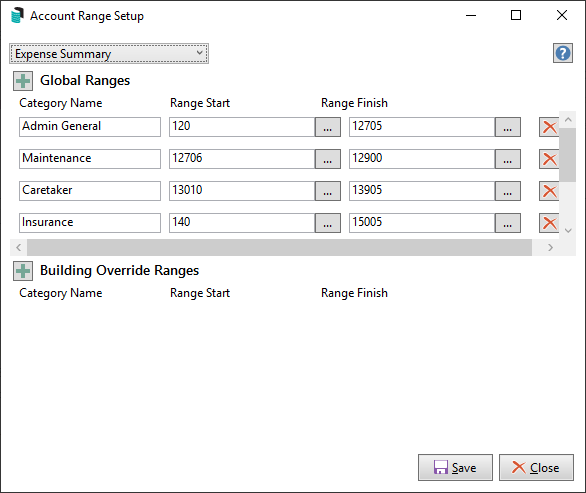
- Click Expense Summary Setup.
- Click the green + icon to set up a range of account codes and enter a category name.
- Select the ... Range Start and select the first account code of the range, and click OK.
- Select the ... Range Finish, then select the last account code in the range, and click OK.
- Add additional categories and ranges as required.
- To delete an account code range, click on the red X.
- Click on Save.
These ranges also drive the expense chart on the owners' Financial Dashboard. To set up many buildings at once, see Summary Import.
KPI Tiles
Select the tiles required to be included in the report. The tile in the report will display the count of activity for the entered date range.
- Recoveries Added - based on TRMax date.
- DocMax Documents Added - based on the DocMax added date.
- Arrears Notice Sent - based on the date of the arrears notice issued.
- Emails Sent - based on the date the email is sent from StrataMax.
- Invoices - based on the date of the creditor invoice.
- Levy Notices Sent - based on the date of the levy notice issued.
- Meetings Held - based on the date of meetings in the Meeting Summary.
- Ownership Changed - based on the date of receipt of notice.
- Roll Details Changed - based on the date of receipt of notice.
- Certificates Issued - based on the date the certificate was issued by StrataMax.
- Work Orders - based on the date the work order is issued.
- Insurance Claims - based on the date the insurance claim is lodged.
- Quotes - based on the date the quote request is sent.
- Payment Plans - based on the date a lot is entered into Legal Action / Payment Plans.
- Debt Collection - based on the date a lot is entered into Legal Action.
- Tasks Completed - based on the completed date of tasks in Task Management.

Examples and Letterhead
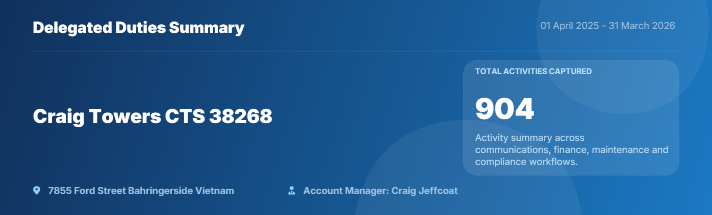
Example report without a letterhead:

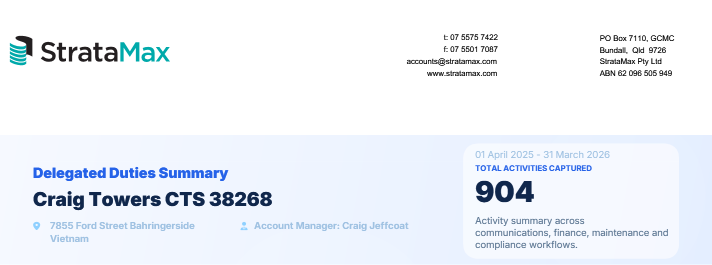
Example report with a letterhead:

Letterhead
The template used will depend on whether the letterhead is included and is set in the cogwheel within the Activity Report/Annual Report area.
Letterhead included:
Letterhead Override set to blank:
FAQ
Q. Are additional reports available to provide more information for specific KPI tiles?
A. Yes, the reports below are available from the report distribution menus that would be suitable. It is recommended to save a report set including the required reports and the date range entered in the configuration, for the Activity Report/Annual Summary will be used on all reports.
- Meetings
- Arrears Issued
- Legal Action (Building Status)
- Payment Plan (Building Status)
- Work Orders (Building)
- Work Quotes (Building)
Q. We use external applications/systems such as Outlook and ResVu that we would like to include information from; can this be included on the Activity Report/Annual Statement?
A. External information can be included within a merge letter that may form part of the report set or separately be attached by clicking on Attachment and adding any additional reports you may require.
Q. The DocMax Documents Added area does not seem to match the total number of documents for the selected building. Why is that?
A. Documents that have been added to DocMax are included in the count, and do not include any StrataMax Report/ Document.
Q. We have not setup account code categories & ranges however want to use this report, is there a template without the graphs?
A. There is no templates available without the graphs, it is recommended to setup two account ranges. One for each trading fund, for example Admin Fund 120 to 189 and Capital Works Fund 220 to 289.

Status Report
The Status Report instructions below offer an alternative for Managers to meet specific state legislative requirements, such as Section 55 of the NSW Strata Legislation. If disbursements are configured for recording, TRMax provides reports that can be generated for a chosen date range. These reports can include manually entered recoveries and work alongside the Status Report. You can also customise the Status Report by adding a title that reflects the type of report being produced.
Creating the Status Report
- Search or select Report Set (using Report Distribution).
- Click + Report to add the Status Report.
- Repeat for TRMax Recovery. Click the cogwheel to set a particular invoice code/operator for reporting. If not set, all are included.
- Repeat for TRMax Consultancy.
- Repeat for Arrears Issued.
- Repeat for Legal Action (Building Status).
- Repeat for Payment Plan Report.
- Repat for Meetings.
- If there are any further reports to include, click +Report to add them, and if it's an attachment, click Attachment and add from DocMax or a file location.
- To customise the title of the report, click the cogwheel for the Status Report template and adjust the Status Report Title. Click Close.
- Click the Save icon and name the Report Set.
Distributing the Status Report
This report is configured to specific reporting periods, and the Arrears Issued, Legal Action, Payment Plan, and Meeting templates will report for the configured reporting period in the Status Report area and do not require dates to be set on each of these.
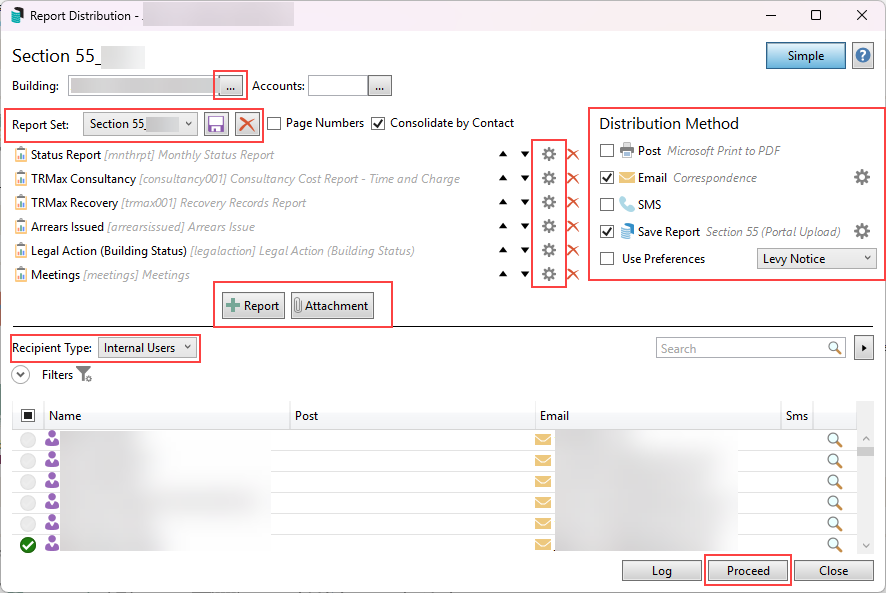
- Search or select Report Set (using Report Distribution)
- Select the Section 55 (or similar) from the Report Set drop-down.
- Within each report, click the cogwheel (except for the Arrears Issued, Legal Action, Payment Plan, and Meeting templates) and assign the override start and finish dates.
- Review the Distribution Method, and if using this report for Portal purposes only, assign the relevant DocMax profile.
- If distributing this to contacts, review the method and recipient type and select the appropriate group.
- If distributing for multiple buildings, select the building selector tool and tag buildings as required.
- Click Proceed, and proceed again from the preview window to distribute the report based on the method set.
In addition to reporting from TRMax, searches can be used to report to excel &/or be saved as a Dashboard for quick reference. Some examples are provided below:


