 | This article covers the topics surrounding the billing process of a Building Management Committees (BMC) and Shared Facilities, which is done in the BMC screen. |
Before the billing can take place, the BMC must be created and setup, including the budget and the percentage liability. Please refer to our BMC Creation and Setup article for help with this.
BMC Setup & Billing Video
If you would prefer to watch a video covering this process, please see the BMC Setup & Billing Video.
Billing and Billing Calculations
The BMC screen uses the budget in Budget Update as well as the proportional liability setup, to determine what each member will be billed. This will take the annual amount in Budget Update for each expense item, and it will calculate what each member will be billed by taking that annual amount for an expense item, and multiplying it by the proportional liability, then divide that amount by the number of billing periods in the financial year. For example, for monthly billing, a budget line item for an amount of $24,000 will be divided by 12 x 10% will charge $200.00 per period.
The billing period can be monthly or quarterly. Once the period frequency has been decided, the billing cycle should not be changed.
Here is some important information to be aware of:
- It should be established in advance whether the billing cycle should be done monthly or quarterly and once set should not be changed.
- Do not click the Create Bills button more than once.
- When Create Bills is clicked, the standing journal transactions will be created and will be visible in the associated buildings in Standing Journals.
- The process date of the journals will be on the date entered in the BMC screen, in the Next Bill Date field. Once this date is reached, a transaction will be created for each journal in the associated buildings, debiting the configured expense code and crediting the BMC creditor.
- Invoices can be printed in the Invoice Printing screen where a due date can be configured. This can only be done once the standing journals have processed and created the transactions in each associated building.
- BMC Regular Billing invoices that relate to Admin Fund will be posted to account code 101, whilst for Sinking/Capital Works/Maintenance Fund will post to account code 201.
- Separate line items will be created for each expense line item in the BMC screen under the Account Liability List and will present this way on invoices that are printed.
- BMC Ad Hoc Billing invoices that relate to Admin Fund will be posted to account code 102 (Admin Fund Special), whilst for Sinking/Capital Works/Maintenance Fund will post to account code 202 (Sinking Fund Special).
- The billing for each period will be set up using the Standing Journal invoice process in StrataMax at the start of each year.
- Calculation is done as follows: Budget Amount ÷ number of periods x percentage liability (e.g. for monthly bills: $24,000 divided by 12 x 10% = $200.00 per period).
Before starting the billing process, ensure the following:
- Budget Update has been completed with the expenses for the BMC. For help with entering the budget, check out the Budget Update article.
- Ensure that the BMC Creditor Code exists in buildings that are managed that forms part of this BMC.
In the BMC screen, when Create Bills is clicked, the standing journal transactions will be created and will be visible in the associated buildings in Standing Journals. They will then process on the date entered in the BMC screen, in the Next Bill Date field. Because of this, invoices will not be able to be printed until these standing journals have processed and created the transactions.
- Search or select BMC then select the Billing tab.
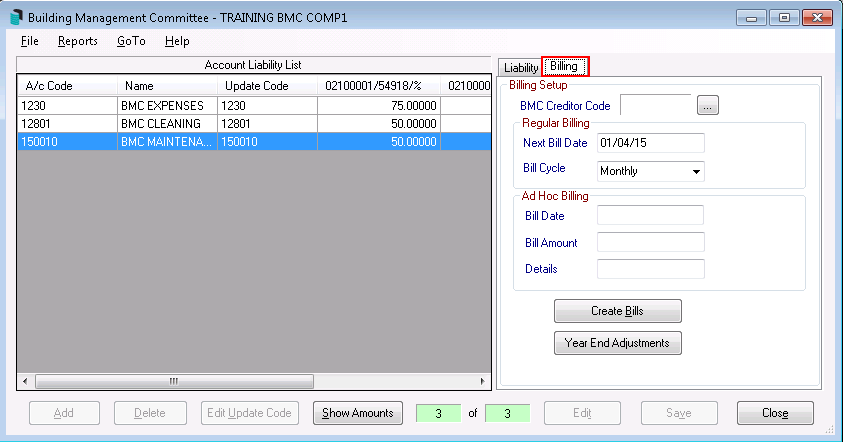
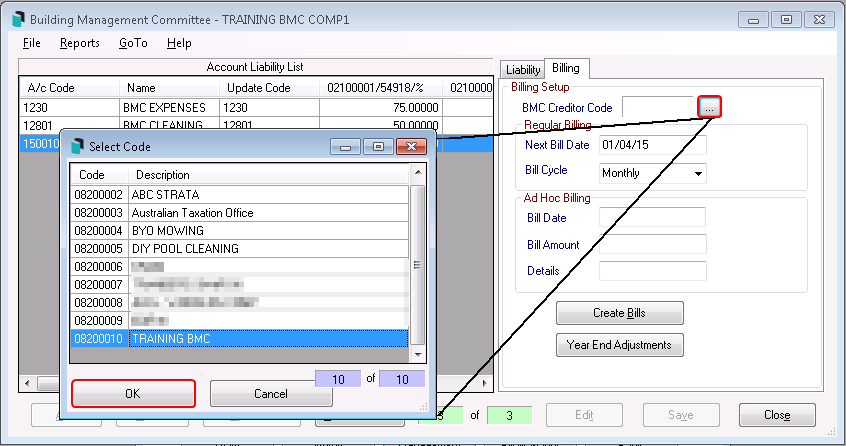
- The BMC Creditor Code will need to be selected by clicking the ellipsis [...] button, then click OK.
- In the Regular Billing section enter the Next Bill Date.
- It is very important to consider this date as it is the date that the standing journal transactions will be processed in Standing Journals and is not the due date. The due date is configured when the invoices are printed in Invoice Printing.
- So, for example, if the due date of the invoice needs to be 1. November 2025, and the manager of those buildings needs at least 30 days notice, then the date in the Next Bill Date field should be 02/10/25.
- Adjust the Bill Cycle drop-down field to 'Monthly' or 'Quarterly'.
- Once this cycle has been established and set, it should not be changed.
- Click Create Bills.
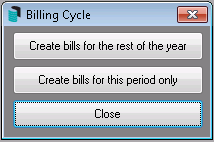
- Make a selection from the Billing Cycle screen; generate the bills for this period only or for the full year.
- This will create standing journal transactions and should be checked in each of the associated buildings in the Standing Journals screen. These will be dated with the date entered in the BMC screen, in the Next Bill Date field, which is when they will be processed and when invoices can be printed to be sent to buildings that are managed by another manager.
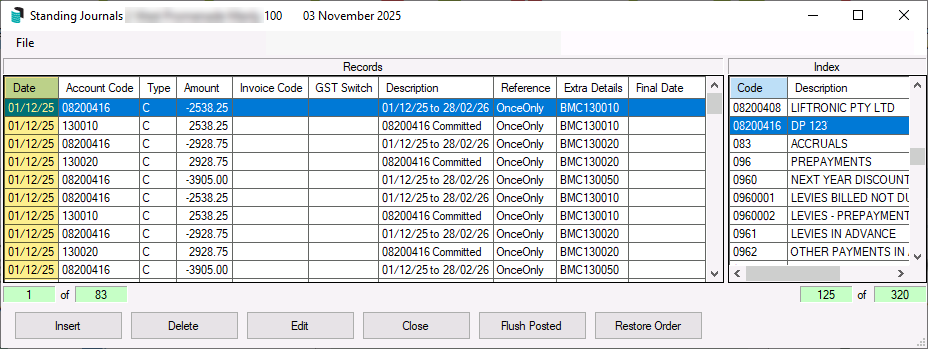 Check the Standing Journals screen in each associated building and observe the date in the 'Date' column.
This is when the transactions will be created and when invoices can be printed to be sent to the relevant manager.
Add Hoc Billing
An ad hoc expense would be an item that is not in the budget. Billing for a special, one off or non-budgeted items can be managed with a manual entry of the amount.
BMC Ad Hoc Billing invoices that relate to Admin Fund will be posted to account code 102 (Admin Fund Special), whilst for Sinking/Capital Works/Maintenance Fund will post to account code 202 (Sinking Fund Special).
If extra funds need to be raised for an expense that is already budgeted for, do not use that same code as it will interfere with that current budget item. Add a similar code that does not have a budget item and conduct an ad-hoc bill.
- Search or select BMC, then select the Billing tab.
- Highlight the expense code with the correct proportional liabilities for this ad hoc bill.
- If no expense code exists, it will need to be added on the liability tab as well as the correct proportional liabilities.
- Enter the:
- Bill Date
- Bill Amount
- Details
- Click Create Bills (if the BMC is GST registered, add GST to the bill).
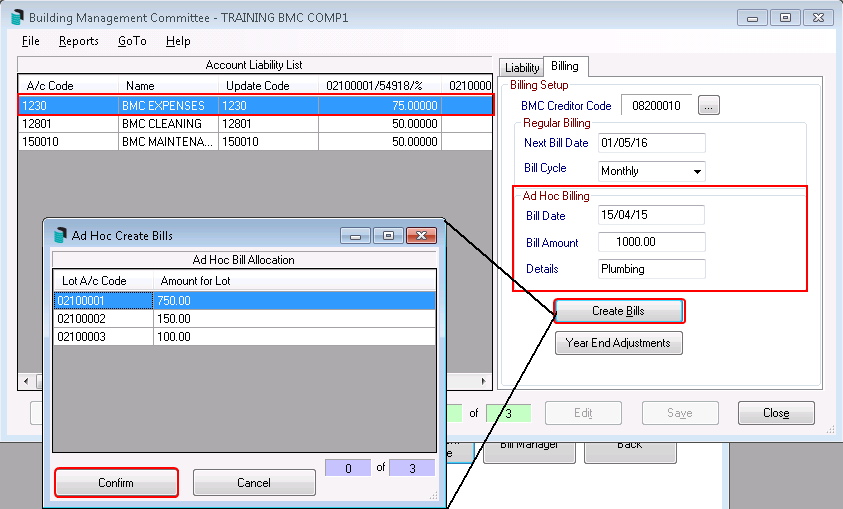
- Check that each Strata Plan's percentage liability is correct and click Confirm.
- Click Close.
- Print the invoice in Invoice Printing.
Invoice Printing
In the BMC screen, when Create Bills is clicked, the standing journal transactions will be created and will be visible in the associated buildings in Standing Journals. They will then process on the date entered in the BMC screen, in the Next Bill Date field. Because of this, invoices will not be able to be printed until these standing journals have processed and created the transactions.
The printing of BMC invoices is done in Invoice Printing and can be done after the standing journals have processed and created the transactions in the associated buildings, so that they can be sent the managers of those buildings. Please see Invoice Printing for steps and details on how to print, produce, or send BMC invoices.
Billing Troubleshooting
If bills are not on the invoice, check the following:
- The BMC is in the correct month.
- That the budget is completed in the BMC and that a new ad hoc budget item can be exported to the building.
- The date of the standing journal.
- Standing Journals are created in the managed buildings.
Do not create the bills more than once.
